Maintenance windows
March 24, 2026
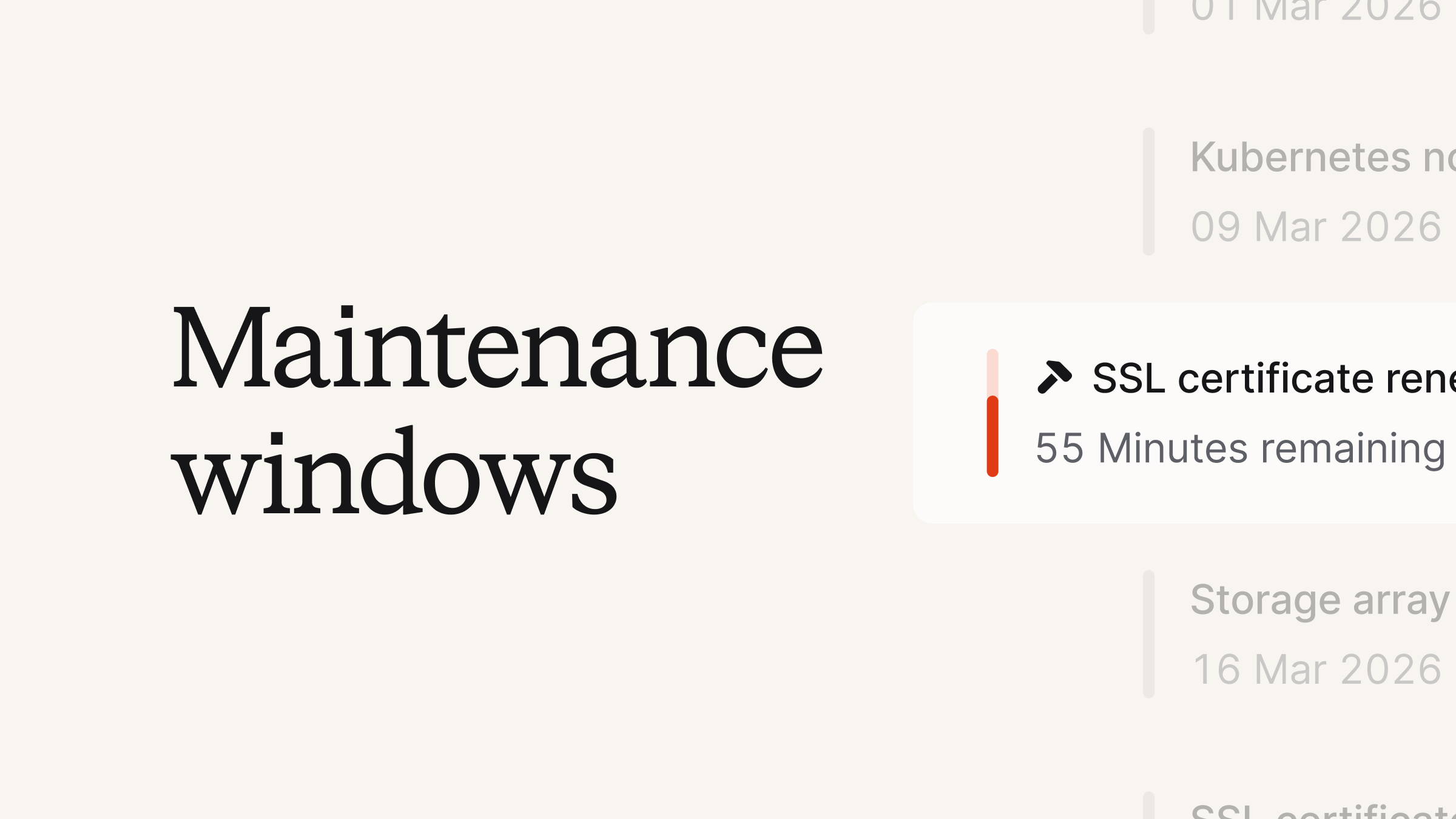
On-call customers can now benefit from maintenance windows! Maintenance windows let you override your alert routing for a set time period, allowing you suppress or redirect alerts during planned maintenance. You can hold alerts until the window ends, attach them to an incident, or escalate them to specific targets.

Once a maintenance window ends, you can either resolve all alerts, reprocess any firing alerts or do nothing.
We’ve provided a lot of flexibility and extra tooling to make sure maintenance windows go smoothly, including:
- Set maintenance windows via the API
- View alerts coming in during the set window
- Extend your maintenance window, or end it early
- Send maintenance announcements to Slack or Teams channels for internal visibility

Our Pro and Enterprise customers can simply create maintenance windows from On-call → Maintenance in the sidebar, or navigate to Maintenance windows directly. For full details on how to leverage this new feature, please see our help docs.
Repeating acknowledged escalations
Users can now configure escalation paths so that if an escalation finishes but the underlying alert is still firing, it re-escalates from the top of the path. There's also a setting to postpone the repeat if relevant incident activity is detected.

See our help docs for more context.
AI suggestions in the dashboard
Users can now click a "generate" button in the dashboard to create AI-powered summaries, updates, and status suggestions directly from the incident view.

Additionally, proactive AI-powered suggestions for incident updates, summaries, and follow-ups now appear as notifications in the dashboard chat, replacing the legacy version of summary and follow-up suggestions.

What else we've shipped
New
- You can now see escalation acknowledgements on the incident timeline
Improvements
- We'll no longer show a Snooze action on escalations older than a week
- We'll now show public holidays on schedules on their observed date, if different than their set date
- We've refined the color palette we use for showing entries in a schedule, which makes them a little easier to see differences between
- You can now import a PagerDuty escalation policy if it has an empty schedule and we'll substitute that with a schedule with nobody on it in incident.io
- Opsgenie Teams in Catalog now sync members
- You can now disable exporting help text from in-app post-mortems through the new toggle on the template
- If you want all your post-mortem documents to include a Meeting notes element, add the new Meeting Notes section to your template
- When you request cover and you're on one schedule, we'll automatically pre-select it for you
- We've made a number of performance improvements to schedules under the hood — meaning listing and viewing them should be much snappier
- We now let you opt into using the old method of saving the incident.io contact card on iOS, which can be a useful workaround for some iOS versions where editing the incident.io managed one is buggy
Bug fixes
- We fixed some UI issues with the expanding interaction with working hours in an escalation path
- We fixed an issue where some long URL values were getting truncated in Slack
- Users with permissions in a team who weren't also a member of that team were locked out of creating schedules and escalation paths. Now they are able to do so.
- Viewers setting timestamps in the incident declare form will no longer be upgraded to responders.
- Fix issue where saving changes to an expression for a post-incident task would error
So good, you’ll break things on purpose
Ready for modern incident management? Book a call with one of our experts today.
We’d love to talk to you about
- All-in-one incident management
- Our unmatched speed of deployment
- Why we’re loved by users and easily adopted
- How we work for the whole organization