Alert grouping improvements
July 8, 2026
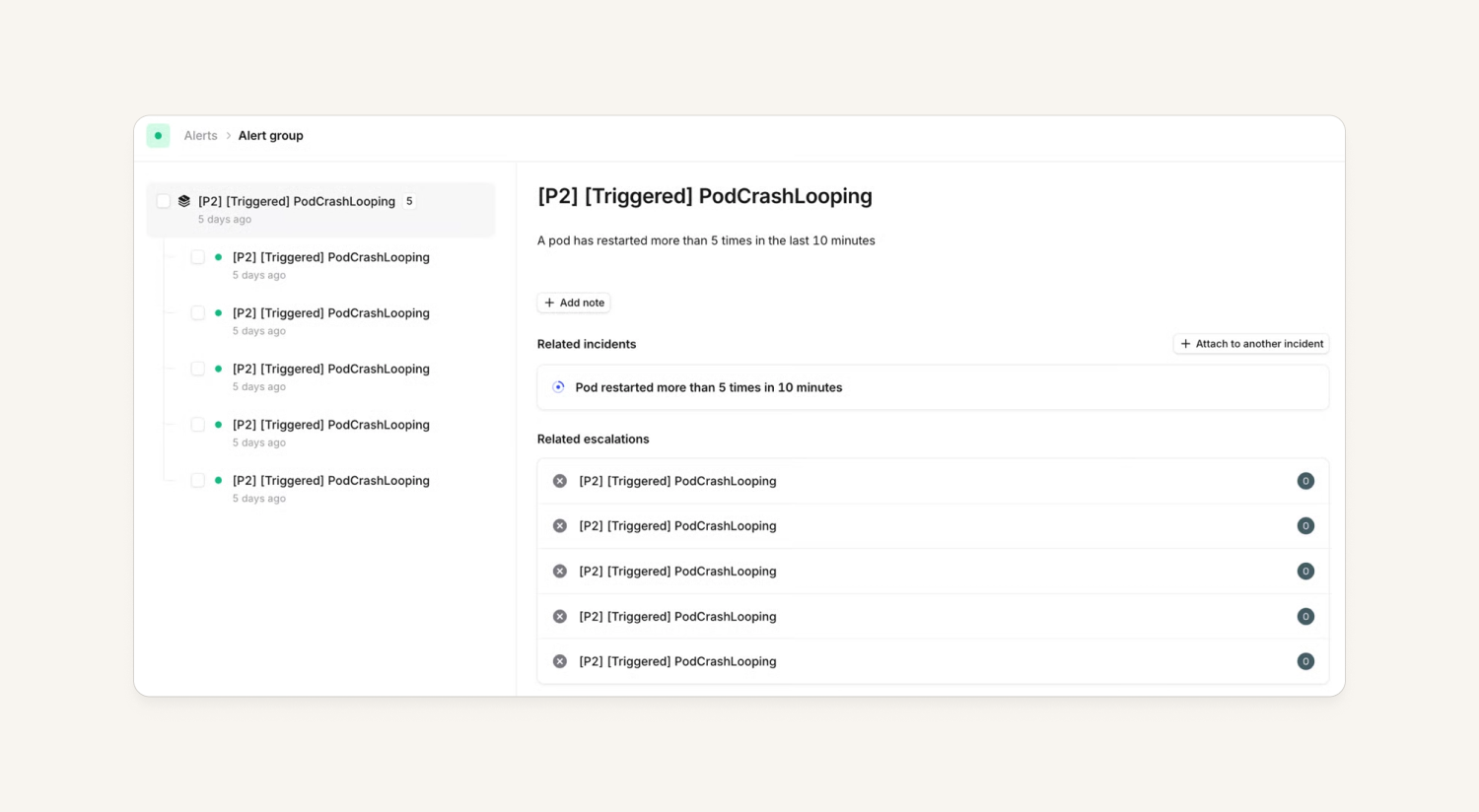
We’ve massively leveled up our alert grouping. Most notably, you are no longer required to create an incident to reap the benefits of alert grouping. So, for example, if you’d like to just escalate based off a group of alerts, you can now do so!
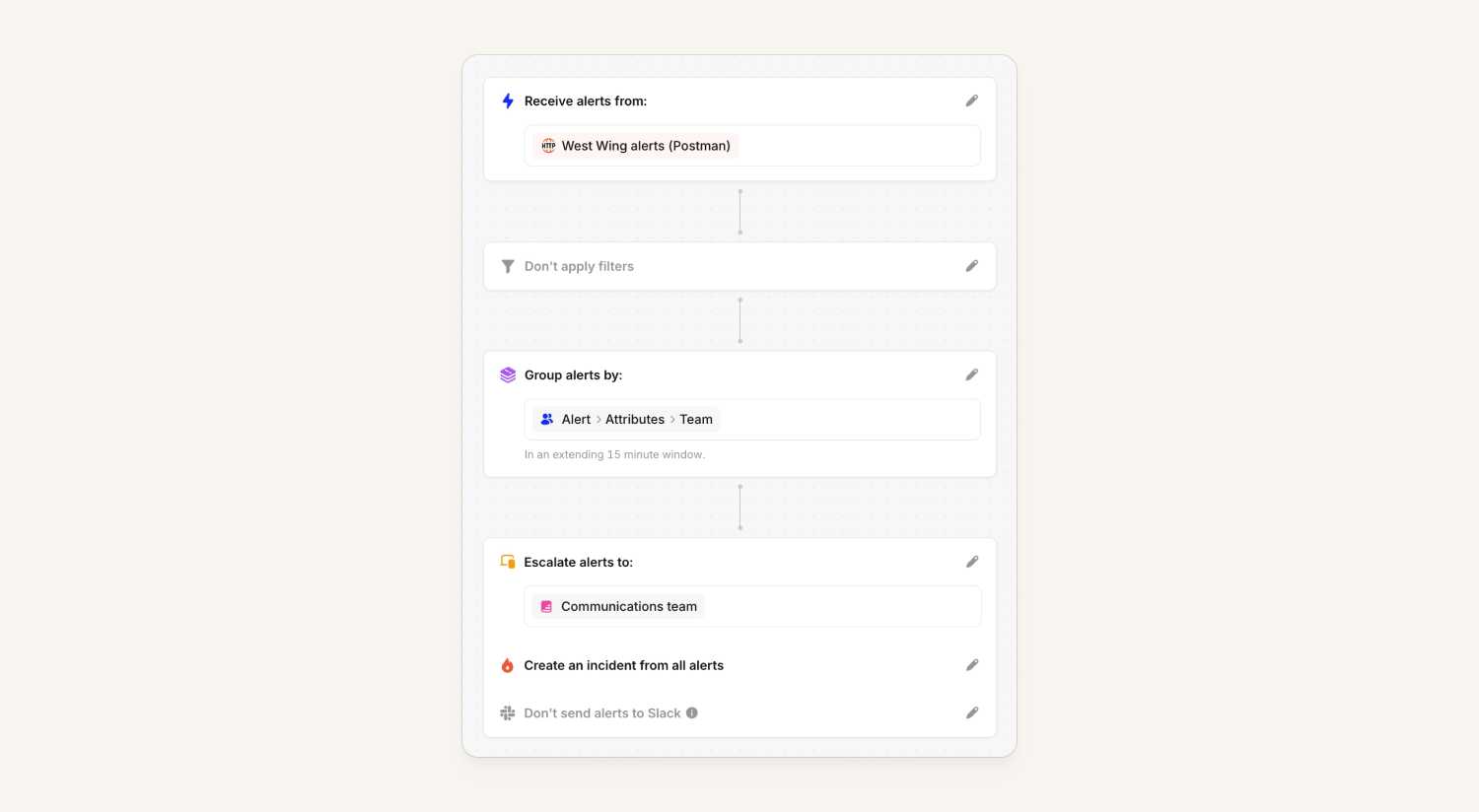
As part of this overhaul, we’ve added a host of new improvements to make alert grouping work even harder for you. This includes the ability to:
- Group alerts without creating incidents
- Group private alerts
- Decide to create an incident from a group of alerts, or attach a group to an existing incident
- Choose how you want new alerts joining a group to escalate (ie. only on the first alert)
- Decide between a fixed time window, or a rolling time window
- Remove alerts from a group and take an action (ie. create a new incident)
You will be able to manage all these new configuration options through Terraform and our new, updated alert route API.
Note: For customers that already group alerts into incidents, we’ll be migrating your organization in a couple of steps. For customers that don’t already group alerts, we’ll be turning it on for you over the next few days. There is nothing to do during the migration phase, but if you’d like to get more details, please see here.
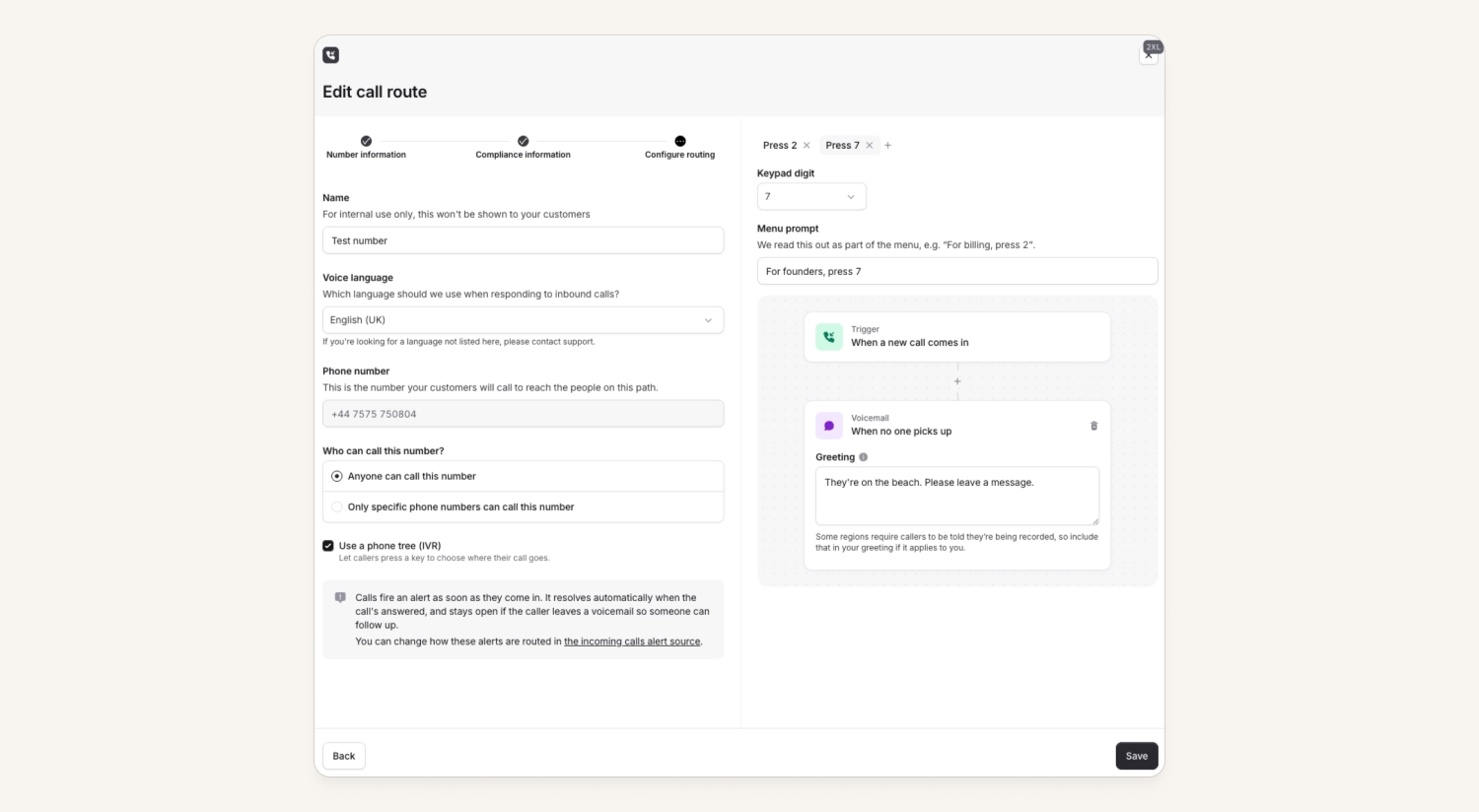
Phone trees in call routes
Enterprise customers can now route calls to up to 9 different options.
This means a single phone number can be used to route to multiple teams, rather than needing a separate number for each team.
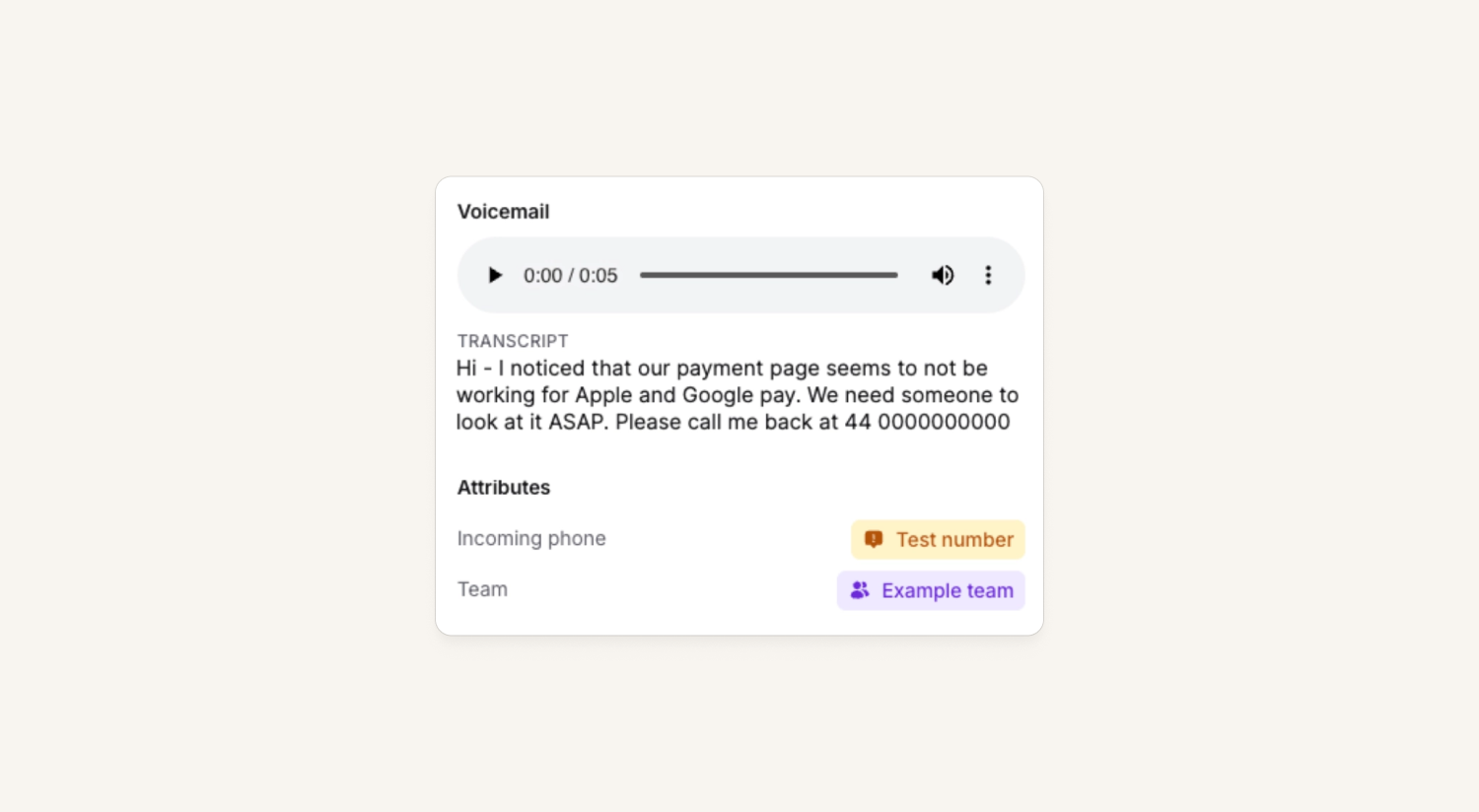
Send calls to voicemail
Call routes can now send incoming calls to voicemail. This can either be if none of the responders are available to answer, or you can just route the call directly to voicemail and not wake anyone up.
Once the caller hangs up, a recording of the voicemail is attached to the call and the alert it produces, and a transcript gets added a few minutes later.
The next mobile app release will include an in-app player too.
Schedule rollout suggestions
When you're editing an on-call schedule, it can be quite confusing to work out how to introduce people without disrupting the schedule. It can be confusing to think about, let alone re-ordering users, choosing the right handover start at time and maybe even choosing to defer changes into the future.
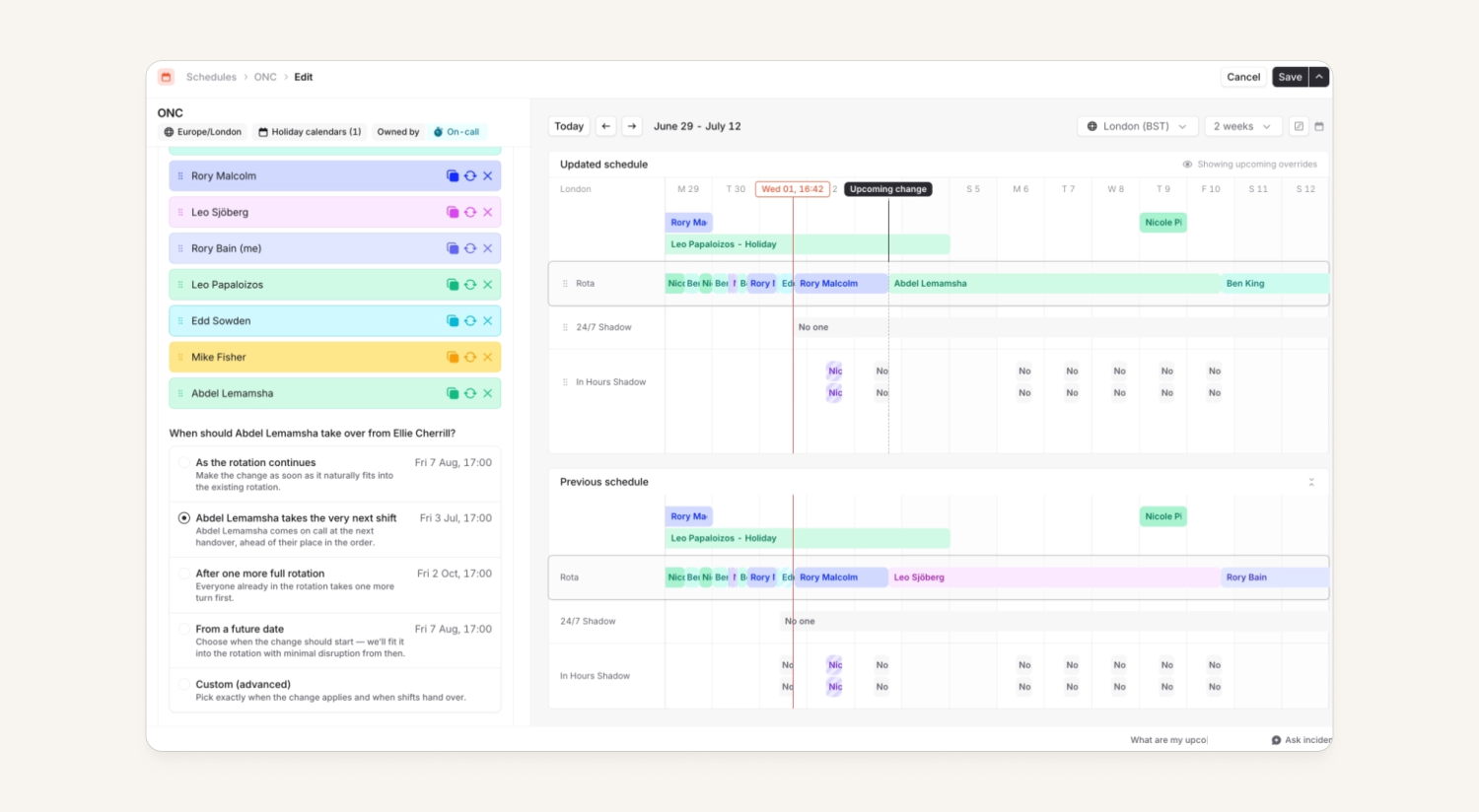
Now, when you make changes to a schedule, we'll try and suggest some useful suggestions based on your change, such as, when removing person A and add person B, we'll suggest:
- Person A does one last shift, then Person B takes over after
- Person B takes over immediately and replaces Person A's next shift
- Person A continues on the schedule until August, then person B takes over
This is currently being rolled out across our customer base.
More controls when using workflows for announcements
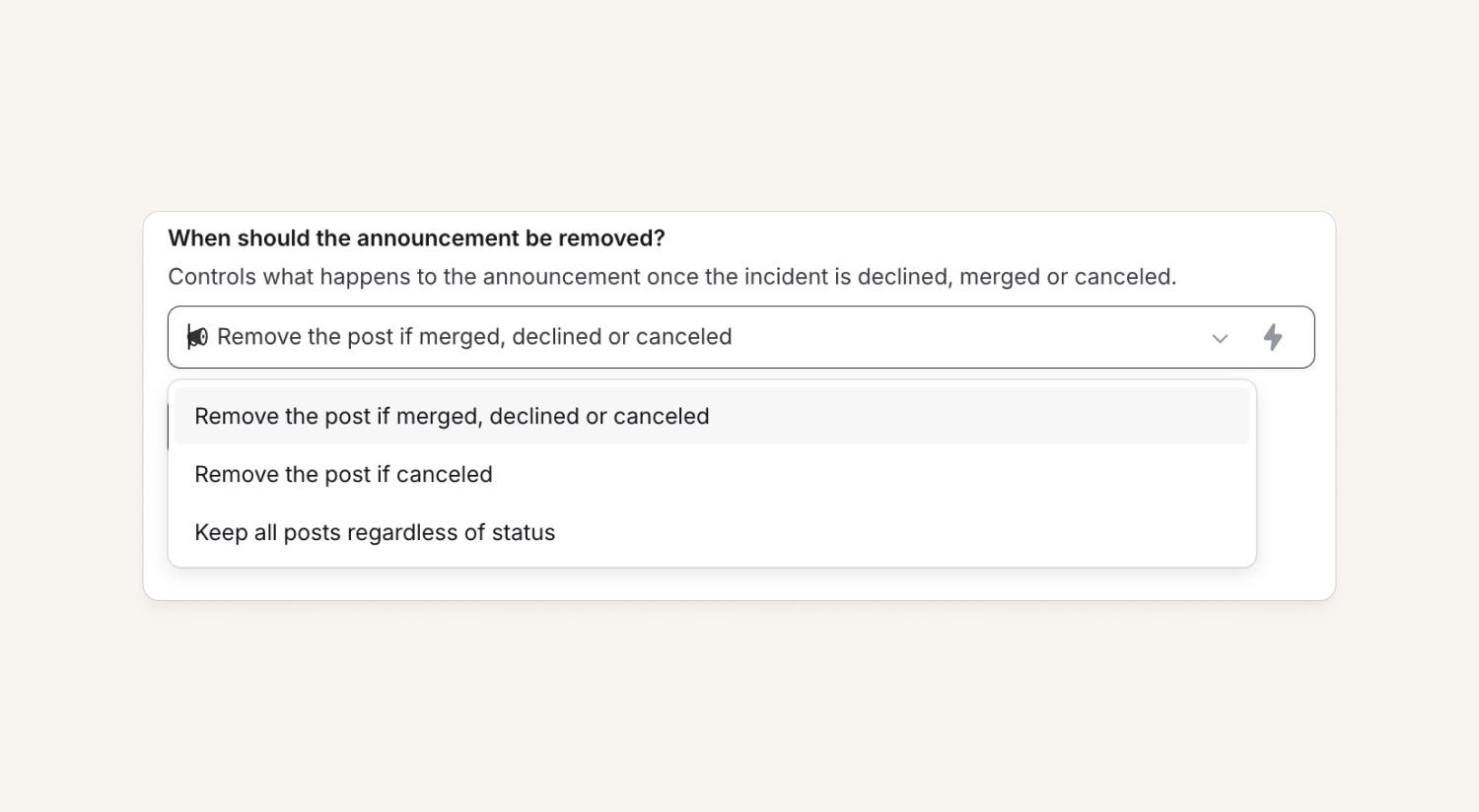
Previously, you could either:
- Use announcement rules, and choose to keep an announcement post when the incident was canceled, declined or merged
- Use workflows (to do other complex things), but we would always delete the announcement if the incident was canceled, declined or merged
Now you can have the best of both.
Manual workflow forms
You can now ask a user to fill in a form to gather extra information before running a manual workflow.
For example, you could:
- Have a workflow that asks for specific inputs before escalating
- Use this to send communications to executives in a standardized format without needing a 'tell responders to set custom field [x]'
- Ask for particular information about an incident before sending it to an external system via a webhook
Check out this Loom for more details.
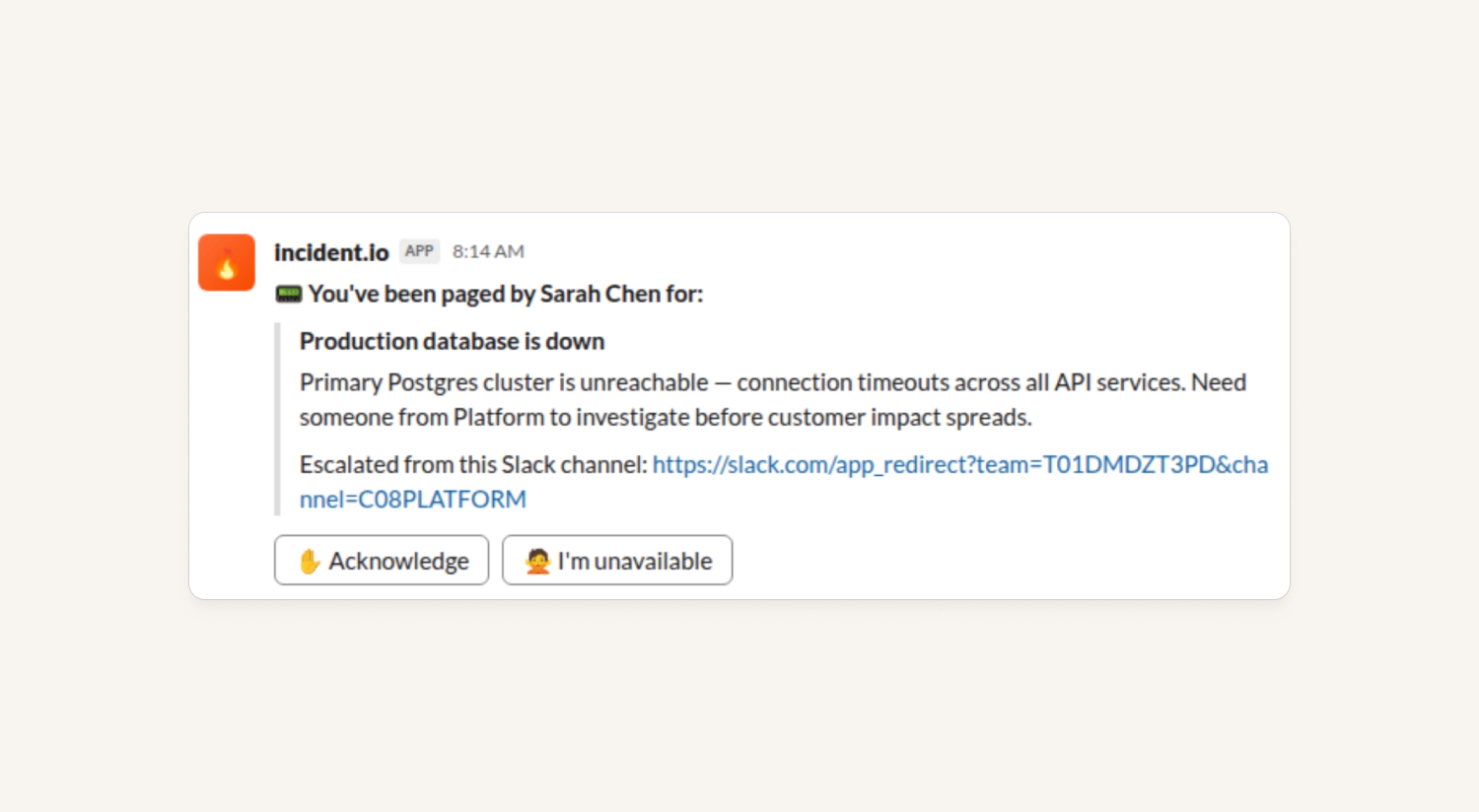
Manual escalations now link back to their originating Slack channel or thread
If you page someone using /inc page or asking @incident can you page Rory we now link you back to the Slack channel the command was run in, or the specific thread if you used the chatbot. If you'd paged from an incident, we already gave you an Open the incident button, but if it was outside an incident, you might not see any of the context around why you'd been paged.
Workload and participant data
Organizations can now access workload and participant data via the public API (See docs here). You can now see a list of who was involved in an incident, their role and how much time they spent in terms of total, in hours, late and overnight minutes.
In addition, you can also get just a list of users and their role in an incident via the API (See docs here).
You can also get workload and private incident data both via the dashboard and API. The same API routes work for a private incident ID, provided the API caller has permission to see it.
Over the API, this is controlled by the new incident_workloads.view_private scope. Grant it by adding the new incident_workload_private_viewer role to your API key (it's also included in the global_access and incident_memberships_editor roles). In the dashboard, anyone who's a member of a private incident can already see its workload, as can anyone with the Manage private incidents permission.
We've also backfilled historical workload, so any past private incident will now have workload data available.
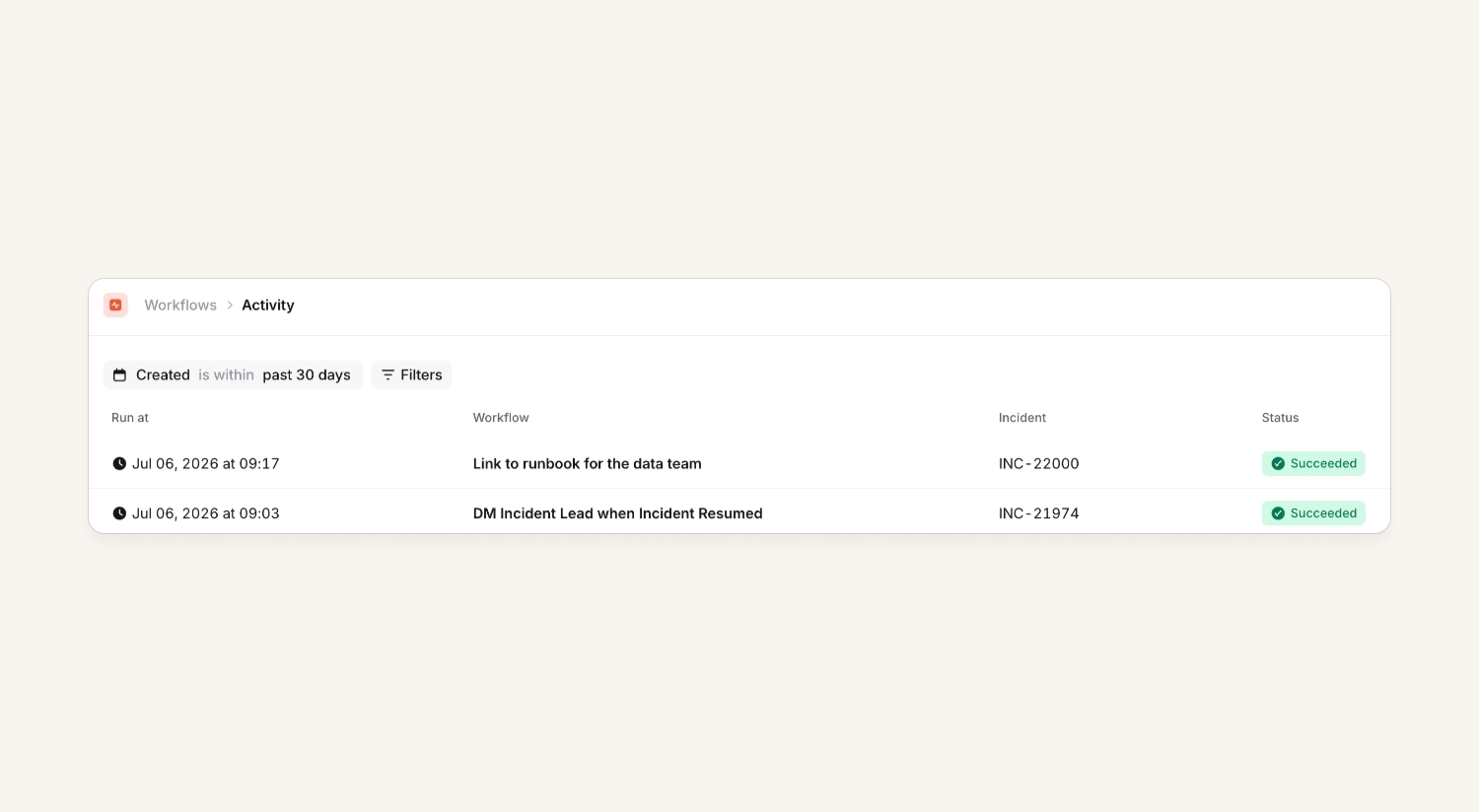
Surface workflow runs
The new Workflow runs page gives you visibility into every time a workflow fired. This includes which workflow ran, when, on which incident, and whether it succeeded or failed broken down by step clicking on it.
Workflows change over time, you tweak conditions, add steps, adjust who gets notified. That makes debugging an old run confusing. Each run already records which version it executed against. So when you're looking at a run, you can open version history and see exactly what the workflow looked like at that point in time.
What else we've shipped
New
- The Attach postmortem document API lets you link a postmortem written in an external tool to an incident
- You'll now see a preview of the post-mortem template you're choosing, to help you pick the right one
- You can now resize and align images in post-mortem documents
- Filtering alerts by attribute on the public API
- Our API Docs now tell you what scope you need to call an endpoint
- Using custom fields in Slack channel names
- The post-mortem editor now does Mermaid diagrams
- The post-mortem editor now has a table of contents outline
- We have an updated
At a glancedashboard with updated colors and near real-time data
Improvements
- On the escalation timeline, the link to the alert or workflow that created the escalation is now more clearly a link
- In the List teams API, the team's external ID is included in the response, to help you look up the team in other systems
- You now have separate permissions for managing schedule syncs (e.g. to Slack user groups) from on-call schedule permissions
- Alert descriptions from Datadog will now parse compatible markdown, preserving formatting from your Datadog monitors
- Dropdowns with lots of items selected are now scrollable, so you can see which items are selected
Bug fixes
- On your team's page, follow-ups assigned to your team are included as well as follow-ups from incidents belonging to your team
- On phone screens, nested dropdown menus now stack, rather than floating off the side of the screen
- When viewing alerts captured by a maintenance window, we were not including priority in the UI. Now it's populated!
So good, you’ll break things on purpose
Ready for modern incident management? Book a call with one of our experts today.
We’d love to talk to you about
- All-in-one incident management
- Our unmatched speed of deployment
- Why we’re loved by users and easily adopted
- How we work for the whole organization