Private incidents for teams
July 14, 2026
We’ve been working hard to enable large organisations to scale their incident response workflows, and help teams safely handle configuration that impacts their most sensitive incidents.
A security team handling a sensitive disclosure works very differently from a platform team responding to an outage — including who's even allowed to know the incident is happening.
We've reworked private incidents and all the infrastructure around them so that they can be managed at the team level. Each team can now control who sees their private incidents, own the configuration that shapes how their incidents run, and make changes with confidence that they stay within their own boundaries — no admin in the loop for every change, and no risk of stepping on another team. It's what lets many teams share one incident.io and still run incidents their own way.
- Private incidents for teams — add an entire team to a private incident so they can easily have access without needing to be in every channel.
- Team-owned incident types and lifecycles — each team owns how its incidents are structured and progress, end to end, without an admin in the loop.
- Team-owned workflows — teams build and own their automation end to end, including workflows that safely run on just their private incidents.
- Team-owned announcement rules and templates — every team controls what it announces, where, and exactly how the post looks.
- 6 new team-based permissions — enabling teams to manage their own configuration without being able to edit everyone else’s
Private incidents, scoped to a whole team
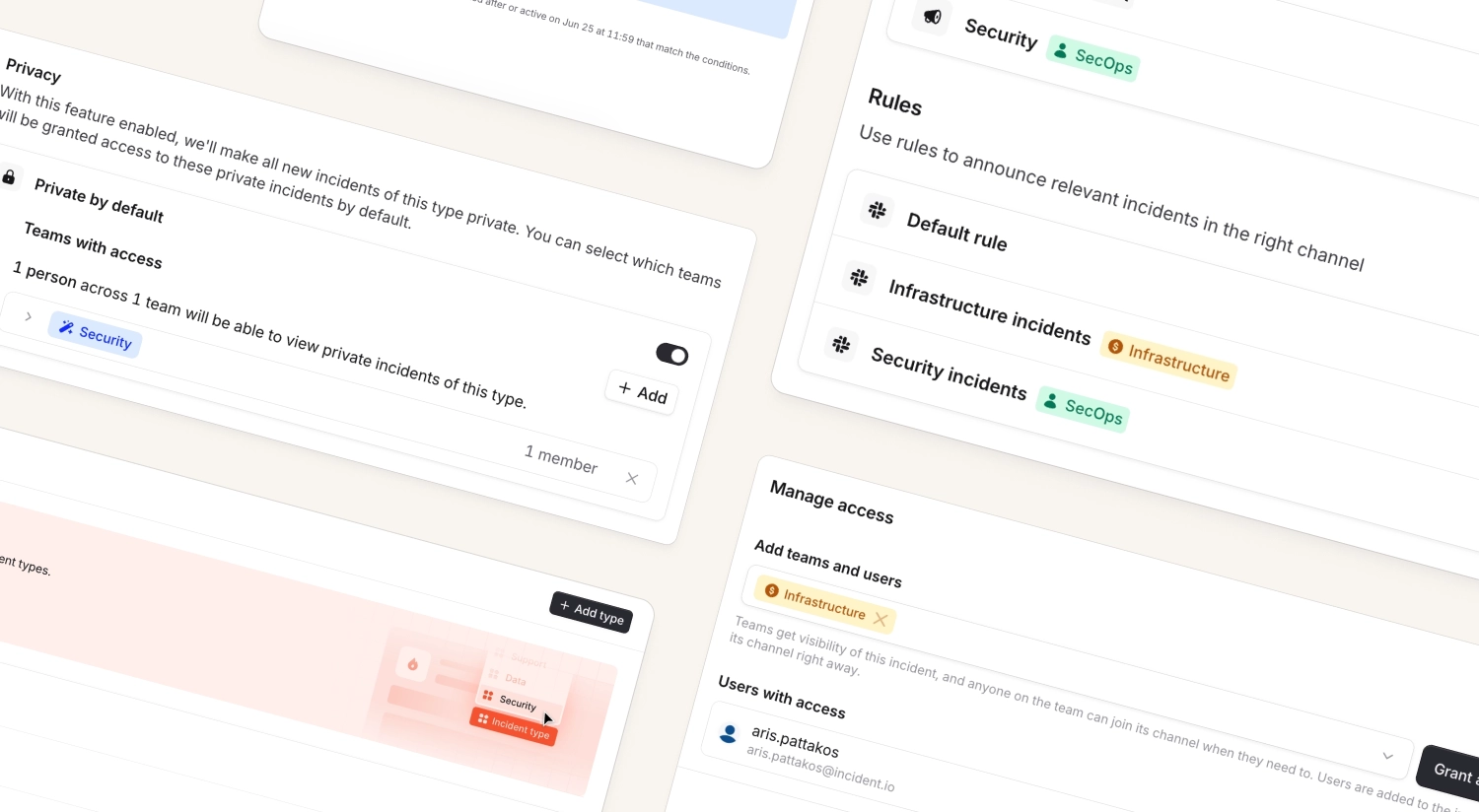
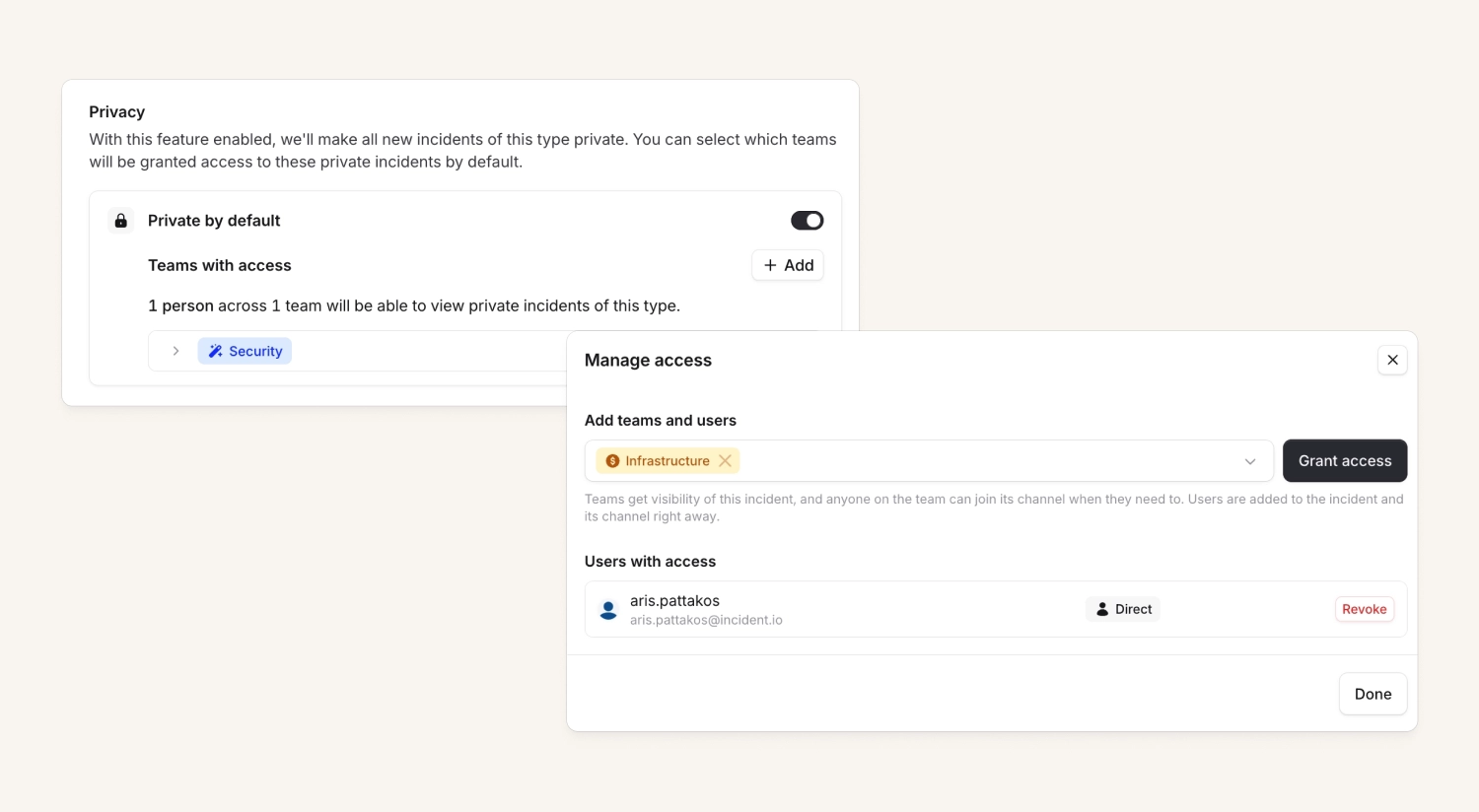
We've overhauled private incidents so you can control access by team, not just by individual user. Say you declare an incident you want handled confidentially — you've spotted a potential vulnerability, for example — and raise it as private. Until now, the only way to bring in colleagues was to invite them one at a time. Now you can grant access to an entire team in a single step: a security team might be five people or fifty, and every one of them can get access at once.
Granting a team access provides visibility; it doesn't automatically pull everyone into the Slack channel. Anyone on the team can see every private incident their team has been added to from the dashboard, so the whole team keeps oversight. When someone wants to actively help, they can add themselves to the channel.
You can also announce a private incident to a private channel the team can see, and eligible team members can request to join right from the announcement. If the team allows it they're added instantly, otherwise the incident lead gets a request that they can either approve or reject.
You can also invite the right teams automatically by setting default team access on an alert route, incident type, workflow, or via the public API.
Because changing who can see a sensitive incident is a high-stakes action, every change comes with a detailed preview. When you add or remove a team, we show you exactly who gains or loses access, so you can make the change with confidence.
Team-owned incident types and lifecycles
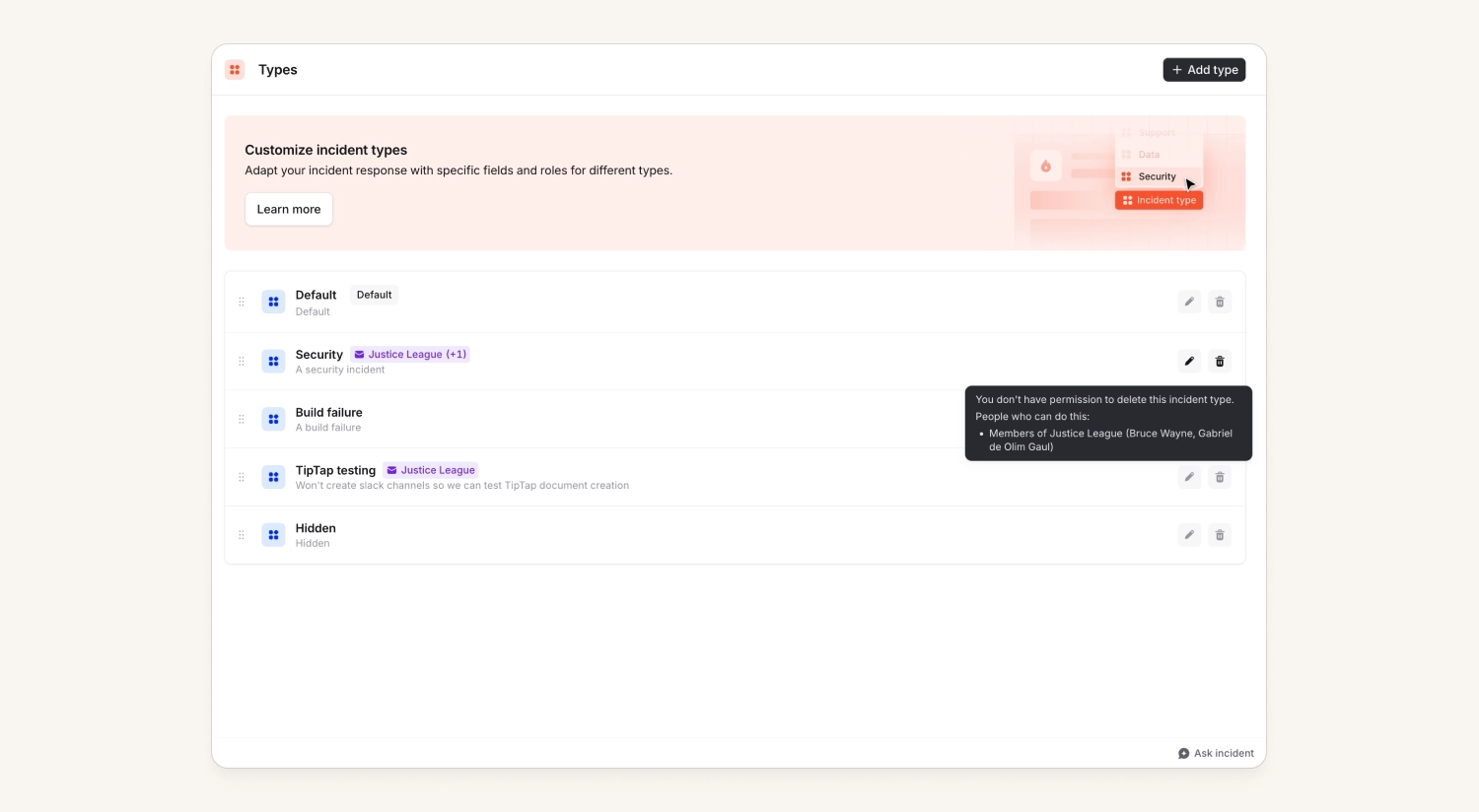
You can now set which teams own an incident type, and create a team role with the Manage incident types permission. Only members of an owning team who hold that permission can change that type — so a team can adjust the incident types it uses without an account-wide admin permission, and without being able to touch other team's types.
This extends to incident forms: you can only edit and override forms for incident types your team owns. And you can set an owner on incident lifecycles too, so a lifecycle used by your team's incident types can't be changed out from under you by another team.
This matters most when you're operating at scale. Previously, letting someone edit the incident types their team relies on meant giving them a global permission to manage every incident type in your account — not something you'll want to hand out widely, especially for teams whose incidents are private by default.
Team-owned workflows
The Manage workflows permission can now be added to a team role. That means team members — or other team roles — can create, edit, and delete their own workflows without needing permission to edit every workflow in the account.
You can now find your team’s workflows more easily: filter for just your team’s workflows and see them all in one place under your team’s settings.
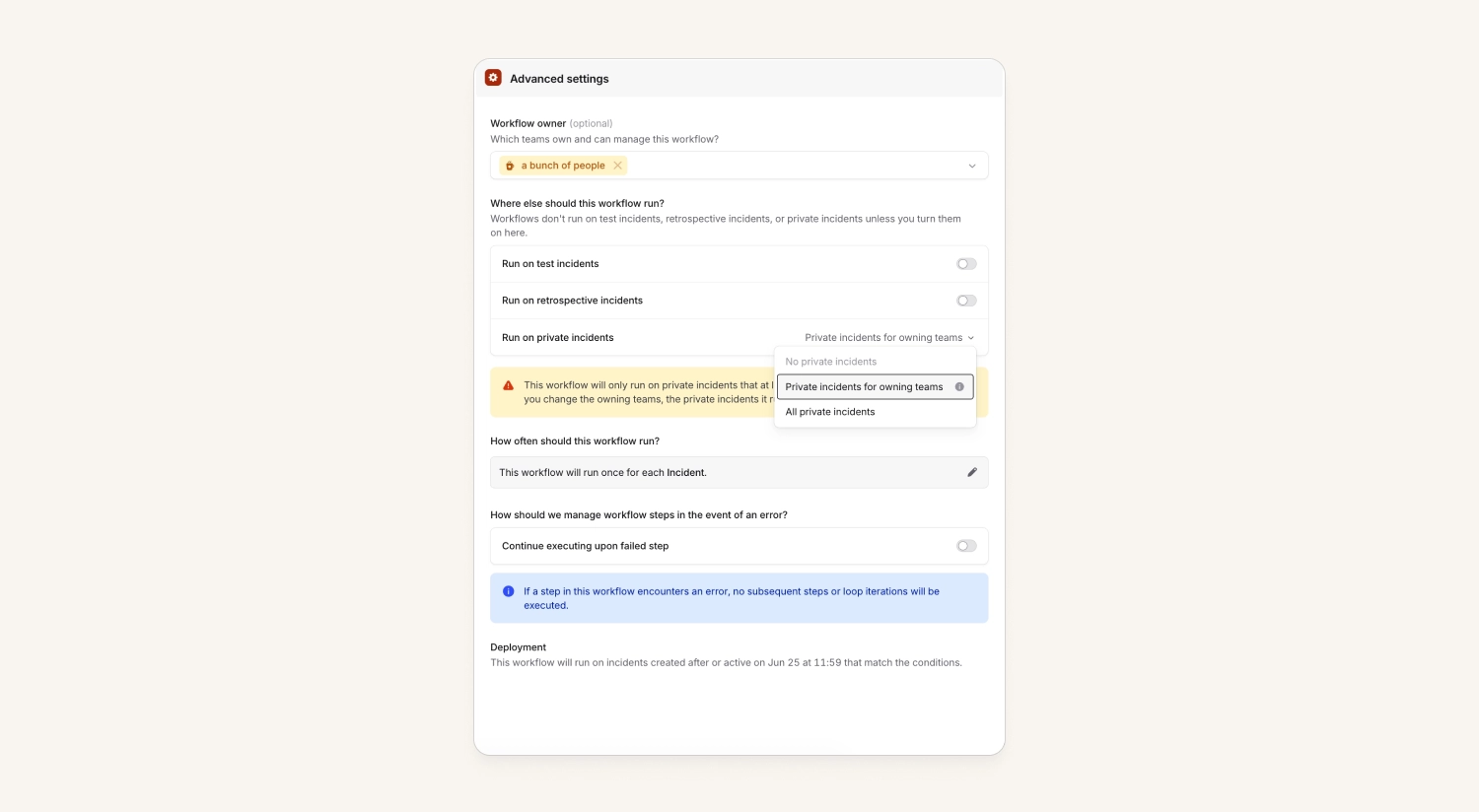
We’ve also made it easier to safely manage workflows that need to run on private incidents without risking data exfiltration. Again, using team permissions, you can give someone access to configure workflows that run only on private incidents their team has access to.
Team-owned announcement templates and rules
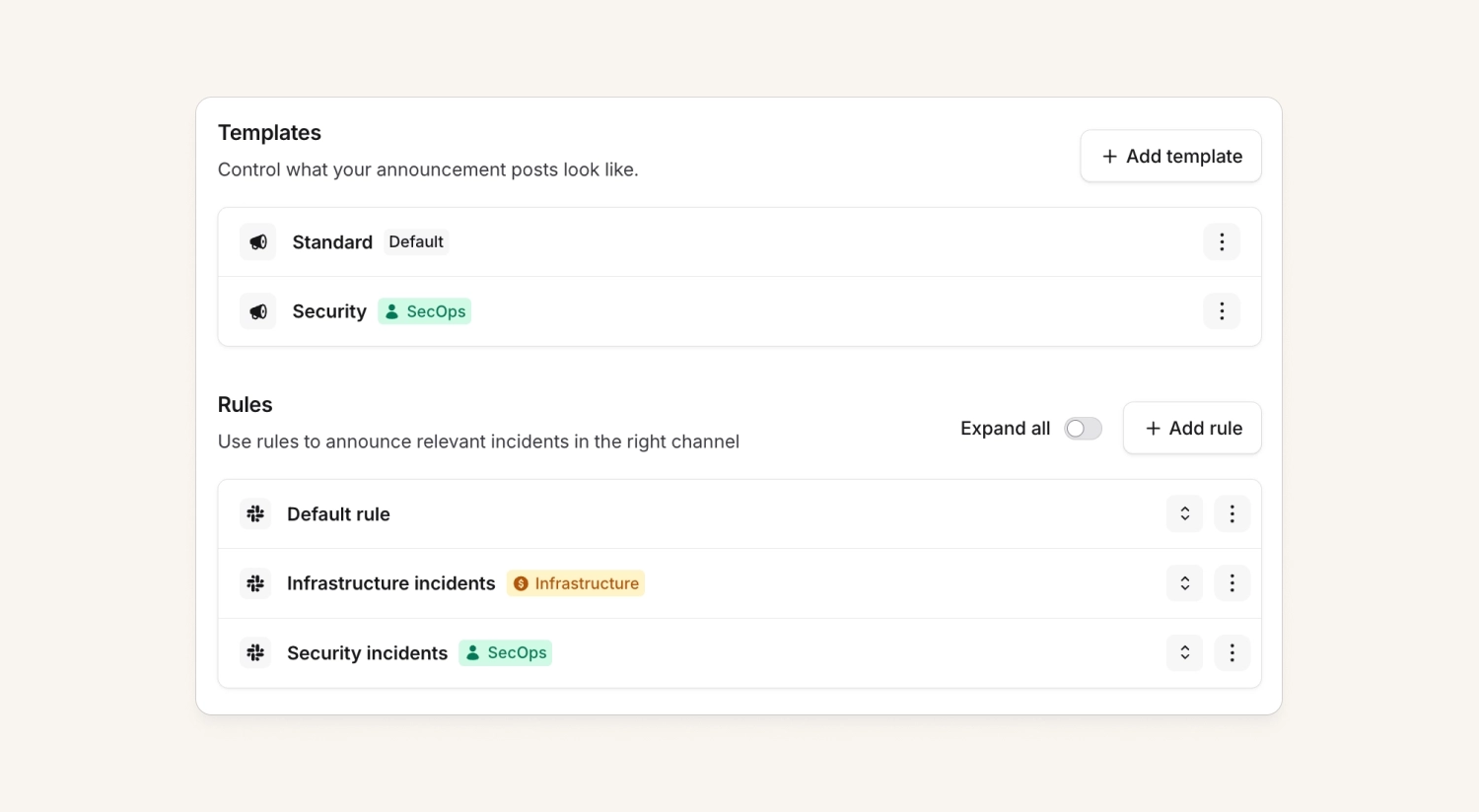
Announcement posts used to share one global format — every rule and workflow produced the same-looking post. You can now create multiple announcement post templates and choose which template each rule uses (and templates can be selected when posting an announcement from a workflow too).
Teams can now own these too. Add the Manage announcements permission to a team role, and a team can create, edit, and delete its own announcement templates and rules — managed right from the team's own settings page — without touching anyone else's.
Announcement rules can also run on private incidents, and again you can scope access to just a single team’s private incidents just like workflows.
The six new team permissions
Each of these can be granted globally or scoped to a specific team, so a team can manage its own configuration without being able to touch anyone else's.
Automation
- Manage announcements — create, update and destroy announcement rules, and edit post configuration.
- Manage workflows — create, update and destroy workflows.
- Manage workflows that run on private incidents — create, update and destroy workflows that run on private incidents.
Settings
- Manage incident types — create, update and destroy incident types, and override or update the incident forms for those types.
- Manage incident lifecycles — create, update and destroy incident lifecycles, their statuses, and incident timestamps.
- Manage default team access for incident types — change which teams are granted access by default on a type's private incidents. This pre-authorizes team access to every future private incident of that type, so it's held separately from editing incident types.
If you don’t have teams set up yet, check out our guide to get started.
So good, you’ll break things on purpose
Ready for modern incident management? Book a call with one of our experts today.
We’d love to talk to you about
- All-in-one incident management
- Our unmatched speed of deployment
- Why we’re loved by users and easily adopted
- How we work for the whole organization